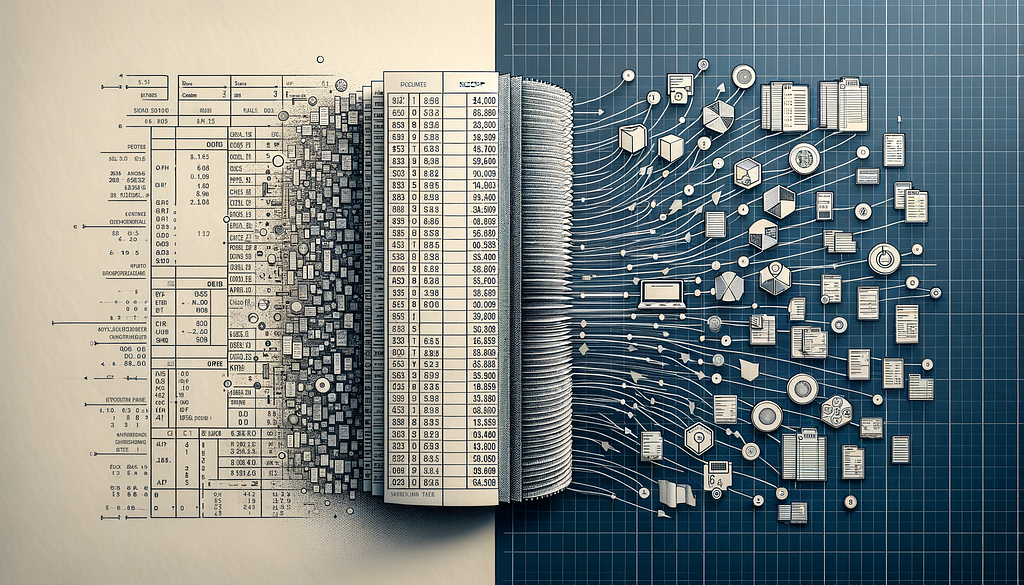
Unpacking the Technology: How OCR and LLMs Are Redefining Data Capture from Images
Recently, I embarked on a personal project to track my spending by extracting information from images of grocery store receipts, inspired by apps like Happay or Zoho. As I delved deeper into the project, I quickly realized the complexity of the problem I was facing. The core issue was the inconsistency in format and information placement across different receipts. This variability meant that a singular model couldn’t reliably extract all the necessary data.
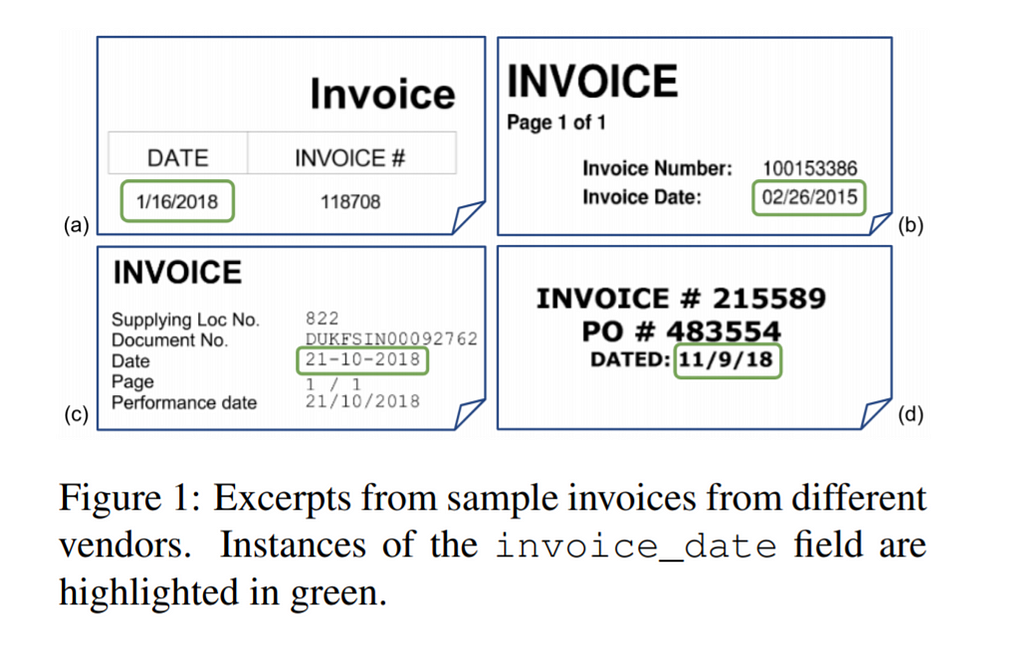
This personal challenge echoed a larger, industry-wide dilemma: the difficulty of processing information from documents with diverse layouts, not just limited to receipts but extending to various other forms like boarding passes or invoices. Traditional extraction methods, such as rule-based systems, proved insufficient due to their rigidity and inability to adapt to the wide range of document designs.
Driven by my own experiences and the broader implications of this issue, my project aimed to develop a solution that was both flexible and efficient for extracting information from a variety of document formats. I focused on leveraging OCR (Optical Character Recognition) and Large Language Models (LLMs) like ChatGPT. This approach marked a shift from using OCR solely for digitizing text to a comprehensive process where OCR-generated unstructured text is transformed into structured data using the advanced contextual capabilities of LLMs.
The innovation of this method lies in its adaptability, capable of handling numerous document types without extensive training or specific rules for each format. My goal was to demonstrate an effective strategy for data extraction that could be a reference point for similar challenges faced in various business contexts. This project was not just a technical pursuit but a journey that stemmed from a personal need to find a practical solution to an everyday problem.
The GitHub link of the project can be found here.
The Google Collab link of Methodology 3 can be found here:
Problem Statement
In the rapidly digitizing world, businesses and individuals frequently encounter the challenge of extracting precise information from a myriad of image-based documents like receipts, boarding passes, and invoices. Each of these document types comes with its unique layout and format, making the task of data extraction and processing both complex and time-consuming. Traditional methods often fall short due to their inflexibility and inability to handle the vast diversity in document designs.
This project tackles the pressing need for a more adaptive and scalable approach to decipher and transform unstructured data from various image formats into structured, actionable information. It explores the intersection of Optical Character Recognition (OCR) and Large Language Models (LLMs) as a solution. The focus is on developing methods that not only accurately extract text from images but also intelligently interpret and organize this data, catering to the nuances of different document types.
The aim is to bridge the gap between the simplicity of image-based data and the complexity of its extraction and structuring, providing efficient, cost-effective, and versatile solutions suitable for diverse applications in the digital era.
Value Propositions of this project
Exploration
Having encountered these challenges in my personal project, I realized that the solution lies not just in a single technology, but in a combination of tools and approaches. This realization led me to explore and experiment with three distinct methodologies, each offering its unique advantages and drawbacks in the context of information extraction from images.
After discussing the advantages and disadvantages of each methodology, it’s important to not only understand them theoretically but also practically. To bridge this gap, I will be providing detailed, step-by-step code implementations in python for each of these three methodologies in the subsequent sections of this article.
Methodology 1: GPT-4 Vision (GPT-V) by OpenAI
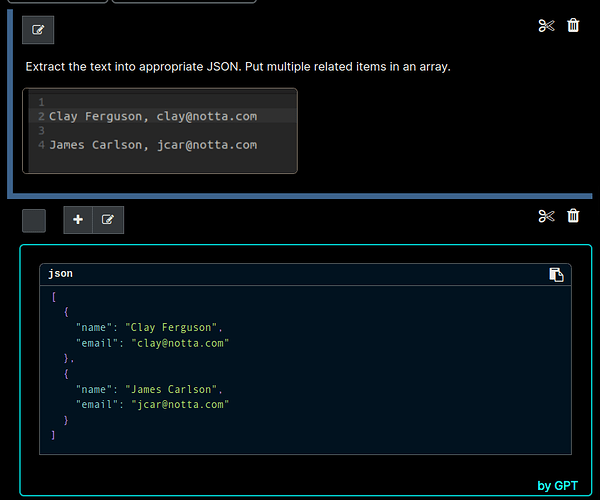
The first methodology I explored leverages the innovative capabilities of GPT-4 Vision (GPT-V), a state-of-the-art Visual Question Answering (VQA) model developed by OpenAI. GPT-V stands out for its ability to analyze images and provide detailed information based on user queries. This model allows users to upload an image and ask specific questions about its content, to which GPT-V responds with precise and relevant information.
In the context of extracting data from images, GPT-V offers a highly intuitive and efficient solution. The process is remarkably simple: you upload an image to the model, and GPT-V processes this image to return the required information in a structured JSON format. This data can then be easily stored and retrieved for later use.
Advantages of Using GPT-V:
Disadvantages of Using GPT-V:
Methodology 2: Azure Cognitive Services and GPT 3.5 Turbo by OpenAI
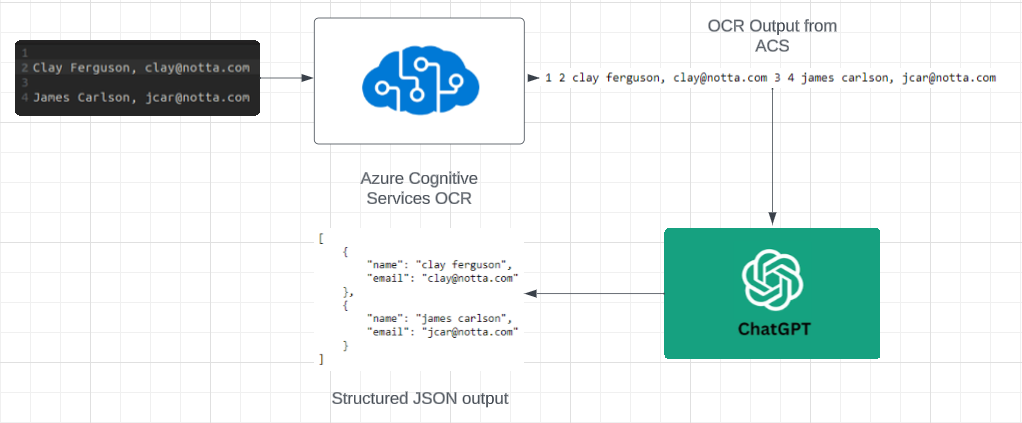
The second methodology I explored combines the use of Optical Character Recognition (OCR) and a Large-Language Model (LLM) to effectively process and structure data extracted from images. This method starts with an OCR model to capture all textual information from the image, followed by the utilization of an LLM to organize this unstructured data into a desired format.
For this approach, I employed Azure Cognitive Services (ACS) as the OCR tool and GPT 3.5 Turbo for data structuring. ACS excels in extracting all text present in an image, converting it from a visual format into a machine-readable, unstructured textual format. Following this, GPT 3.5 Turbo’s JSON formatter function is used to restructure this raw text. The integration of ACS’s powerful OCR capabilities with the advanced data structuring ability of GPT 3.5 Turbo results in highly accurate information extraction. The outcome is not just a simple transcription of the image’s text but a well-organized, structured JSON representation of the information originally contained in the image.
Advantages of Using ACS and GPT 3.5:
Disadvantages of Using ACS and GPT 3.5:
Methodology 3: PaddleOCR and Zephyr-7b
The final approach I explored shares a similar template with the second methodology but shifts its focus towards data security and latency, while still maintaining a strong emphasis on result accuracy.
For the OCR component, I opted for PaddleOCR. This toolkit, built on the PaddlePaddle framework, supports over 80 languages and offers a comprehensive suite of tools for text recognition and detection. Additionally, PaddleOCR is equipped with features for data annotation and synthesis, and it is optimized for various deployment environments, including servers, mobile, embedded, and IoT devices. Its lightweight nature makes it an ideal choice for a production environment, particularly where resource efficiency is a priority.
Moving to the Large Language Model (LLM) aspect, I selected Zephyr-7B developed by HuggingFace. Zephyr-7B is a fine-tuned version of the Mistral-7B model, which has demonstrated impressive performance, rivaling GPT-3.5 Turbo in many benchmarks, including MT-Bench and AlpacaEval. The efficiency of Zephyr-7B, despite being a 7-billion parameter model, means it is accessible for consumer-grade hardware, making it a practical choice for various applications.
For those interested in learning more about Zephyr-7B and its development, I recommend the article “Zephyr 7B Beta beats ChatGPT: HuggingFace’s Open challenge to OpenAI” by Gathnex (published in October 2023) and exploring its dedicated page on HuggingFace’s website.
Advantages of using PaddleOCR and Zephyr-7B:
Disadvantages of using PaddleOCR and Zephyr-7B:

Transitioning to Implementations
Having explored the theoretical aspects and weighed the pros and cons of each methodology, it’s time to delve into the practical side. In the following sections, I will guide you through the step-by-step implementation of each methodology. These walkthroughs are designed to be clear and comprehensive, whether you’re a novice just starting out or an experienced developer looking to expand your toolkit.
Implementation of GPT-4 Vision (GPT-V)
Let’s first install the additional dependency required.
!pip install openai
Then let’s get all of our imports and API key sorted.
import base64
import requests
from openai import OpenAI
# OpenAI API Key
api_key = "Insert-Your-OpenAi-API-Key-Here"
client = OpenAI(api_key = api_key)
To start using GPT-V, you first need to create an account on OpenAI’s website and then generate API keys. It’s important to note that GPT-V access requires at least one completed payment on your account. Once these prerequisites are met, OpenAI will provide you with access to GPT-V.
Now let’s write a helper function.
def encode_image(image_path):
    with open(image_path, "rb") as image_file:
        return base64.b64encode(image_file.read()).decode('utf-8')

headers = {
        "Content-Type": "application/json",
        "Authorization": f"Bearer {api_key}"
}
Before making an API request, the local image must be converted into a format compatible with GPT-V. This is where the encode_image() function comes into play. It takes a locally stored image and converts it into its base64 encoded version, ready for the API request.
Then we write the code which will help us send the API request.
def question_image(url,query):
    if url.startswith("http://")or url.startswith("https://"):
        response = client.chat.completions.create(
            model="gpt-4-vision-preview",
            messages=[
            {
            "role": "user",
            "content": [
                {"type": "text", "text": f"{query}"},
                    {
                    "type": "image_url",
                    "image_url": url,
                    },
                ],
            }
        ],
        max_tokens=1000,

        )
        return response.choices[0].message.content
    else:

        base64_image = encode_image(url)

        payload = {
            "model": "gpt-4-vision-preview",
            "messages": [
              {
                "role": "user",
                "content": [
                  {
                    "type": "text",
                    "text": f"{query}?"
                  },
                  {
                    "type": "image_url",
                    "image_url": {
                      "url": f"data:image/jpeg;base64,{base64_image}"
                    },
                  }
                ]
              }
            ],
            "max_tokens": 1000
        }

        response = requests.post("https://api.openai.com/v1/chat/completions", headers=headers, json=payload)

        temp=response.json()
        return temp['choices'][0]['message']['content']
The question_image() function might initially seem complex, but it primarily consists of standard boilerplate code. Let’s break it down for a clearer understanding:
Function Parameters: The function accepts two key inputs:
Handling Online URLs: If the url is an online URL, the function executes the code within the 'if' statement, preparing and sending the request to GPT-V.
Customization Options:
Handling Local Files: If a local file is provided as url, the function enters the 'else' block and executes a different type of API call. The same parameters (system prompt, max_tokens, format_response) can be adjusted here as well to tailor the API's response to your needs.
Now, all that’s required is to pass an image along with a query to perform text extraction. For demonstration purposes, I’ll use the following image of a Singapore Airlines boarding pass. While simpler than a typical receipt, it still presents similar challenges in terms of information extraction. The task will be to ask GPT-V to extract key details such as the airline name, passenger name, flight number, departure city, destination city, and the date of departure.
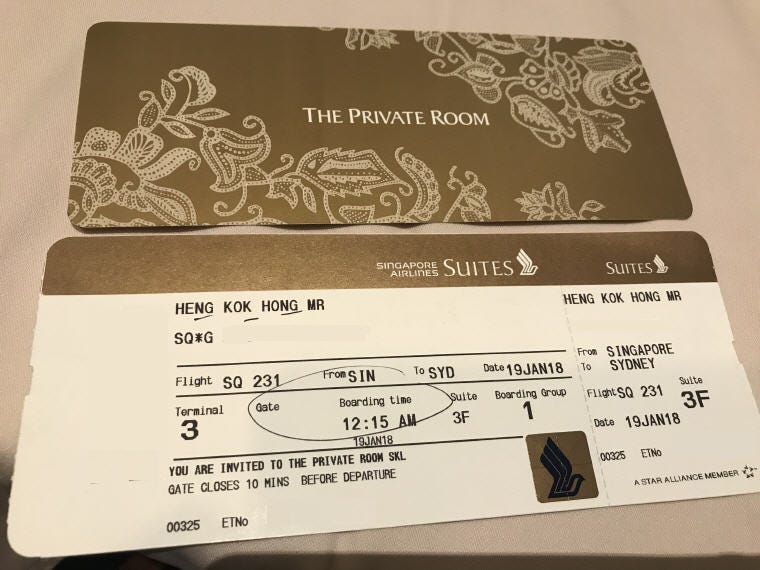
query="Extract the airline_name,passenger_name,flight_num,departure_city,destination_city and date_of_departure from this boarding pass in a JSON format"
image_url="singapore.jpg"
boarding_pass_json=question_image(image_url,query)
print(boarding_pass_json)
After passing the query and the image to the function, we receive the following response.
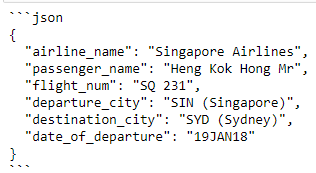
Pretty neat if I do say so myself.
Implementation of Azure Cognitive Services and GPT 3.5 Turbo
Let’s install all pre-requiste libraries.
!pip install opencv-python
!pip install openai
Note: If you are having any trouble installing opencv, refer to the official docs for clarification here: opencv-python · PyPI
Now let’s get all the imports out of the way.
import os
from openai import OpenAI
import json
import cv2
import requests
import time
os.environ['OPENAI_API_KEY']='Insert-your-openai-api-key-here'
client = OpenAI()
Setup your API key like explained above.
First, lets define the function to perform OCR through Azure Cognitive Services.
subscription_key = "Insert-Your-Azure-Cognitive-Services-Key-Here"
def ocr(img,mime_type='image/jpeg'):

    """

    Ocr extraction from Image or Image at local path

    Input: Image or Image local path

    Output: Cognitive Services OCR output response json

    """
    #Change the url for your particular region. I live in India so i use the central India servers
    url = "https://centralindia.api.cognitive.microsoft.com/vision/v3.2/read/analyze?language=en"

    payload={}

    img_bytes=None

    if type(img)==str:

        files=[('image',('tmp.jpg',open(img,"rb"),mime_type))]

    else:

        img_bytes=img

        files=[('image',('tmp.jpg',img_bytes,mime_type))]

    headers = {'Ocp-Apim-Subscription-Key': subscription_key}

    response = requests.request("POST", url, headers=headers, data=payload, files=files, verify=False)

    status_code = response.status_code

    ocr_out=response.headers

    if status_code== 202:

        url=ocr_out['Operation-Location']

        response = requests.request("GET", url, headers=headers, data=payload, verify=False)

        ocr_out=response.json()

        while ocr_out["status"]=="running":

            time.sleep(1)

            response = requests.request("GET", url, headers=headers, data=payload, verify=False)

            ocr_out=response.json()

    #print(ocr_out)
    return dict(ocr_out),img_bytes
Firstly, ensure you have your Azure Cognitive Services vision API key ready. Input this key into the subscription_key variable. Now, let's delve into the key aspects of the ocr() function.
The ocr() function is designed to accept two parameters:
In most instances, you’ll provide an image URL to the ocr() function to obtain the output JSON from Azure Cognitive Services. While much of the function consists of standard boilerplate code, there is a crucial point to remember: the url variable needs to be tailored to the specific server you're using. In my case, I set it to the Central India server.
Adjusting this variable ensures that your requests are directed to the correct Azure server, optimizing the performance and reliability of your OCR operations.
Now let’s write the main function which incorporates the OCR output with GPT 3.5 Turbo.
def Image_to_JSON(image_path):
    # Perform OCR on the image and extract the text content
    result,img_bytes = ocr(image_path)
    data=result['analyzeResult']['readResults']
    texts=[line['text'] for item in data for line in item['lines']]

    # Stores the OCR content extracted from the image in a string which can be fed into ChatGPT
    ocr_string = " ".join(texts)
    ocr_string=ocr_string.lower()

    # Create a query for ChatGPT, including the OCR content and the required information
    ChatGPT_Query=f"""The following is a raw dump of an OCR output from a boarding pass of a flight. Extract the airline name,name of the passenger,flight number,departure city,destination city and date of departure from it. The Departure City and Destination City should be in their airport codes.
    The raw OCR data of boarding pass is {ocr_string}.
    """
    format_instructions="""The output should be in a JSON format where the keys should be 'airline_name','passenger_name','flight_num','departure_city','destination_city' and 'date_of_departure'."""

    completion = client.chat.completions.create(
    model="gpt-3.5-turbo-1106",
    messages=[
    {"role": "user", "content": f"{ChatGPT_Query} \n {format_instructions}"}
    ],
    response_format={ "type": "json_object" }
    )
    # Receive the JSON file
    data = completion.choices[0].message.content

    # Return the JSON object
    return json.loads(data)
The Image_to_JSON() function is designed with a singular purpose: to take an image path (image_path), which can be either a local file path or an online URL, and return the data contained within the image in a JSON format.
The function begins by sending the image to Azure using the ocr() function we defined earlier. The first five lines handle this process. Once Azure processes the image, the extracted text is retrieved and stored in an array. This array is then concatenated into a single string, referred to as ocr_string, which contains all the words found in the image, converted to lowercase. The decision to use lowercase is based on preliminary observations that the system processes text more effectively in this format, though further exploration might be needed.
Next, the query for GPT 3.5 Turbo is prepared and stored in the ChatGPT_Query variable. For demonstration purposes, I'm using the boarding pass scenario, so the query is tailored for extracting information specific to a boarding pass. However, this query can be easily modified for different information extraction tasks. The query also specifies the desired format for each piece of data.
Another variable, format_instructions, is used to define the format in which we want the response, which in this case is JSON. This includes specifying all the keys and the types of values expected in the output.
After sending this request to GPT 3.5 Turbo and receiving the response, we extract the JSON data as a dictionary. This dictionary is then returned to the user, who can utilize it as needed.
It’s important to note that in the request, I have used the response_format parameter similar to what was mentioned in the implementation of Methodology 1. This approach can be adopted in the GPT-V call as well, if required.
Now let’s test it out on the same boarding pass image I used for testing methodology 1.
b=Image_to_JSON(r"singapore.jpg")
import pprint #Just for demonstration purposes, can just use regular print
pprint.pprint(b)
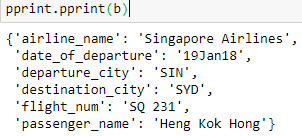
As you can see, it works perfectly.
Implementation of PaddleOCR and Zephyr-7B
Let’s install all pre-requiste libraries for Zephyr-7B.
!pip install git+https://github.com/huggingface/transformers.git
!pip install accelerate
Pre-requisite libraries for PaddleOCR
!git clone https://github.com/PaddlePaddle/PaddleOCR.git
!python3 -m pip install paddlepaddle-gpu
!pip install "paddleocr>=2.0.1"
Now let’s get all the imports out of the way.
import torch
from paddleocr import PaddleOCR
from transformers import pipeline
Now let’s write the OCR through PaddleOCR first.
ocr = PaddleOCR(use_angle_cls=True, lang='en',use_space_char=True,show_log=False,enable_mkldnn=True)

img_path = 'singapore.jpg'
result = ocr.ocr(img_path, cls=True)

ocr_string = ""
#Extract the text from the OCR result and concatenate it to ocr_string
for i in range(len(result[0])):
    ocr_string = ocr_string + result[0][i][1][0] + " "
In this part of the process, we initialize PaddleOCR and load it into the ocr variable, configuring it with several parameters. While many of these parameters, like use_angle_cls and use_space_char, are standard, I've included an additional parameter named enable_mkldnn. This particular parameter enhances performance with minimal overhead, essentially providing a free performance boost. For a more detailed understanding of what each parameter does, I recommend consulting the PaddleOCR documentation.
After setting up PaddleOCR, we proceed to pass the image path, stored in the img_path variable, to it. This image path is the same Singapore Airlines boarding pass that we used in the previous methodology. The OCR then processes the image, and we compile all the detected text into a single variable called ocr_string, similar to what was done in Methodology 2.

Now let’s move onto the LLM code.
pipe = pipeline("text-generation", model="HuggingFaceH4/zephyr-7b-alpha", torch_dtype=torch.bfloat16, device_map="auto") We use the pipeline from the Transformers library to download and use zephyr-7b-alpha model from HuggingFace.
# Each message can have 1 of 3 roles: "system" (to provide initial instructions), "user", or "assistant". For inference, make sure "user" is the role in the final message.
messages = [
    {
        "role": "system",
        "content": "You are a JSON converter which receives raw boarding pass OCR information as a string and returns a structured JSON output by organising the information in the string.",
    },
    {"role": "user", "content": f"Extract the name of the passenger, name of the airline, Flight number, City of Departure, City of Arrival, Date of Departure from this OCR data: {ocr_string}"},
]
# We use the tokenizer's chat template to format each message - see https://huggingface.co/docs/transformers/main/en/chat_templating
prompt = pipe.tokenizer.apply_chat_template(messages, tokenize=False, add_generation_prompt=True)
In this step, we craft a prompt tailored to our specific use case. For this demonstration, which focuses on boarding passes, the prompts are customized accordingly. However, it’s important to note that these prompts can be modified to suit a wide range of other use cases. Once the prompt is written, we utilize the pipeline class, which we defined earlier, to format our message into a structure that Zephyr-7B-alpha can interpret effectively. The resulting format of the prompt variable is then ready for processing.
Here is how prompt looks after it has been formatted.
<|system|>
You are a JSON converter which receives raw boarding pass OCR information as a string and returns a structured JSON output by organising the information in the string.</s>
<|user|>
Extract the name of the passenger, name of the airline, Flight number, City of Departure, City of Arrival, Date of Departure from this OCR data: THE PRIVATE ROOM SINGAPORE SUITES SUITES HENG KOK HONGMR HENG KOK HONG MR SQ*G Fron SINGAPORE TOSYD Date19JAN18 To SYDNEY Flight SQ 231 FronSIN Sulte sutte Boarding Group FlightSQ231 Boarding time 3F Terminal Gate 3F 3 12:15AM Date 19JAN18 19JAN18 00325 ETNo YOU ARE INVITED TO THE PRIVATE ROOM SKL GATE CLOSES 10 MINS BEFORE DEPARTURE A STAR ALLIANCEMEMBER 00325 ETNO</s>
<|assistant|>
The next stage involves sending the formatted prompt to the Zephyr-7B model for information extraction.
outputs = pipe(prompt, max_new_tokens=1000, do_sample=True, temperature=0.7, top_k=50, top_p=0.95)
print(outputs[0]["generated_text"])
Key variables in this process include max_new_tokens, which controls the number of new tokens the model can generate. A higher value in this variable allows for greater creativity and length in the message produced by the model. The variables temperature, top_k, and top_p are used to regulate the randomness of the model's responses.
You can find more detailed information about these parameters and their usage in the Hugging Face documentation and this discussion on Hugging Face’s forum. You can also find examples of their usage in this GitHub Gist.
Once the model has processed the prompt, we then extract and print the JSON output. This output contains all the relevant information extracted from the image.
This is how the entire end-to-end function will look.
def Image_to_JSON(image_path):
    # Perform OCR on the image and extract the text content
    result = ocr.ocr(image_path, cls=True)

    ocr_string = ""  # Stores the OCR content extracted from the image in a string which can be fed into ChatGPT

    # Extract the text from the OCR result and concatenate it to ocr_string
    for i in range(len(result[0])):
        ocr_string = ocr_string + result[0][i][1][0] + " "

    messages = [
    {
        "role": "system",
        "content": "You are a JSON converter which receives raw boarding pass OCR information as a string and returns a structured JSON output by organising the information in the string.",
    },
    {"role": "user", "content": f"Extract the name of the passenger, name of the airline, Flight number, City of Departure, City of Arrival, Date of Departure from this OCR data: {ocr_string}"},
    ]
    # We use the tokenizer's chat template to format each message - see https://huggingface.co/docs/transformers/main/en/chat_templating
    prompt = pipe.tokenizer.apply_chat_template(messages, tokenize=False, add_generation_prompt=True)
    outputs = pipe(prompt, max_new_tokens=1000, do_sample=True, temperature=0.7, top_k=50, top_p=0.95)
    print(outputs[0]["generated_text"])
    return outputs[0]["generated_text"]
Here’s an overview of how the entire Image_to_JSON() function operates:
Let’s apply this function to the same Singapore Airlines boarding pass used earlier.
<|system|>
You are a JSON converter which receives raw boarding pass OCR information as a string and returns a structured JSON output by organising the information in the string.</s>
<|user|>
Extract the name of the passenger, name of the airline, Flight number, City of Departure, City of Arrival, Date of Departure from this OCR data: THE PRIVATE ROOM SINGAPORE SUITES SUITES HENG KOK HONGMR HENG KOK HONG MR SQ*G Fron SINGAPORE TOSYD Date19JAN18 To SYDNEY Flight SQ 231 FronSIN Sulte sutte Boarding Group FlightSQ231 Boarding time 3F Terminal Gate 3F 3 12:15AM Date 19JAN18 19JAN18 00325 ETNo YOU ARE INVITED TO THE PRIVATE ROOM SKL GATE CLOSES 10 MINS BEFORE DEPARTURE A STAR ALLIANCEMEMBER 00325 ETNO</s>
<|assistant|>
Here's the JSON output:

```json
{
  "Passenger": {
    "Name": "HENG KOK HONG MR"
  },
  "Airlines": {
    "Name": "SQ"
  },
  "Flight": {
    "Number": "SQ 231",
    "Departure": {
      "City": "SINGAPORE",
      "Date": "19JAN18",
      "Time": "12:15AM"
    },
    "Arrival": {
      "City": "SYDNEY"
    },
    "Boarding": {
      "Group": "3",
      "Time": "3F Terminal Gate 3F"
    }
  },
  "Other Information": [
    {
      "Title": "The Private Room Singapore Suites",
      "Location": "Heng Kok Hong MR"
    },
    {
      "Title": "Star Alliance Member",
      "ETNo": "00325"
    },
    {
      "Title": "Gate Closes",
      "Time": "10 Mins Before Departure",
      "Location": "SKL Gate"
    }
  ]
}
```

Note: The "Other Information" section has been added to contain any other details that may be relevant to the passenger's travel.
The results demonstrate that the function is quite effective, and with some fine-tuning of the prompts, it can be reliably used for extracting information from images.
Points to consider
As we wrap up the implementations, it’s essential to understand the underlying logic: essentially, any OCR can be paired with any Large Language Model (LLM) to parse and structure data. While I demonstrated these methodologies using popular tools like Azure Cognitive Services, PaddleOCR, GPT 3.5 Turbo, and Zephyr-7B, the concepts are not limited to these specific tools. They serve as examples to illustrate the process, but you’re encouraged to explore other OCR and LLM options that might better suit your specific needs or preferences.
Furthermore, if you’re willing to invest additional effort into refining your data extraction process, consider fine-tuning your chosen LLM. Methods such as Low Rank Adaptation (LoRA) can be highly effective. By training the LLM on a series of prompt-output pairs consisting of Raw OCR dumps and the output being how you desire the OCR to be formatted, you can significantly enhance its ability to parse OCR dumps and generate more consistent JSON outputs. This fine-tuning can tailor the model to be more adept at understanding and structuring the specific types of data you’re working with.
Infact, you could use Methodology 2 of using Azure Cognitive Services and GPT 3.5 Turbo to generate these prompt-output pairs which you could use to fine-tune the LLM of your choice to eventually switch to Methodology 3.
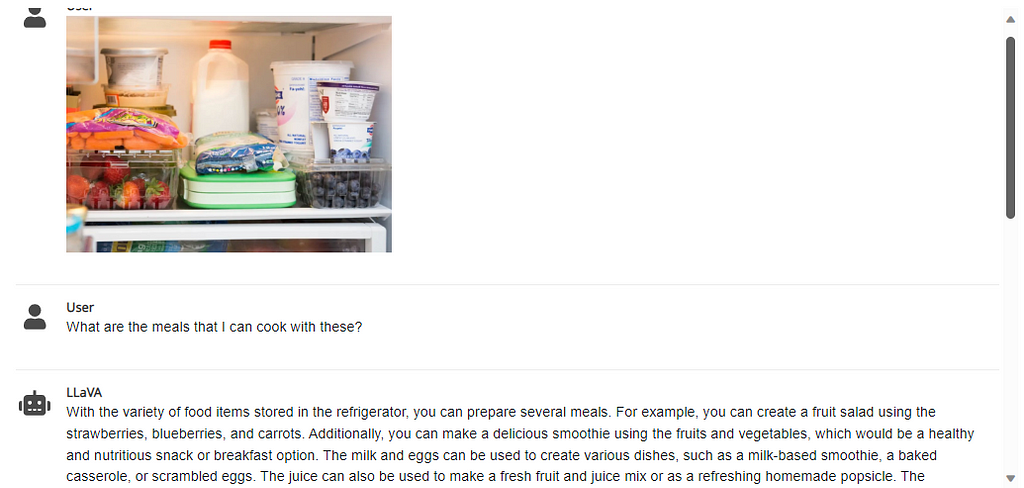
For those interested in exploring an approach similar to Methodology 1, you might want to investigate open-source Visual Question Answering models like LLaVA 1.5 or Fuyu 8B. These models offer functionalities akin to GPT-V and can be a great alternative, especially if you’re looking for open-source options. Implementing your solution with these models can provide you with a similar experience to GPT-V, potentially with the added benefits of customization and greater control over your data processing pipeline.
Conclusion
In conclusion, this project showcases the dynamic and evolving landscape of data extraction from images, demonstrating the effectiveness of combining OCR with Large Language Models. Whether through the simplicity and power of GPT-4 Vision, the precision of Azure Cognitive Services paired with GPT 3.5 Turbo, or the flexibility and security of PaddleOCR with Zephyr-7B, each methodology presents its unique advantages and potential applications.
The key takeaway is the versatility and adaptability of these approaches. By understanding the principles behind each method, you can mix and match different OCR and LLM tools to suit your specific needs, even venturing into the realm of fine-tuning models for enhanced performance.
This project is just a glimpse into that potential, encouraging further exploration and experimentation in the fascinating realm of visual data, text recognition, and language understanding.
I try to implement a lot of theoretical concepts in the ML space, with an emphasis on practical and intuitive applications.
Thanks for reading this article! If you have any questions, I will be happy to answer them. Feel free to message me on my LinkedIn or my email for other queries.